Adding services
In the admin: Dashboard. See the Settings reference.
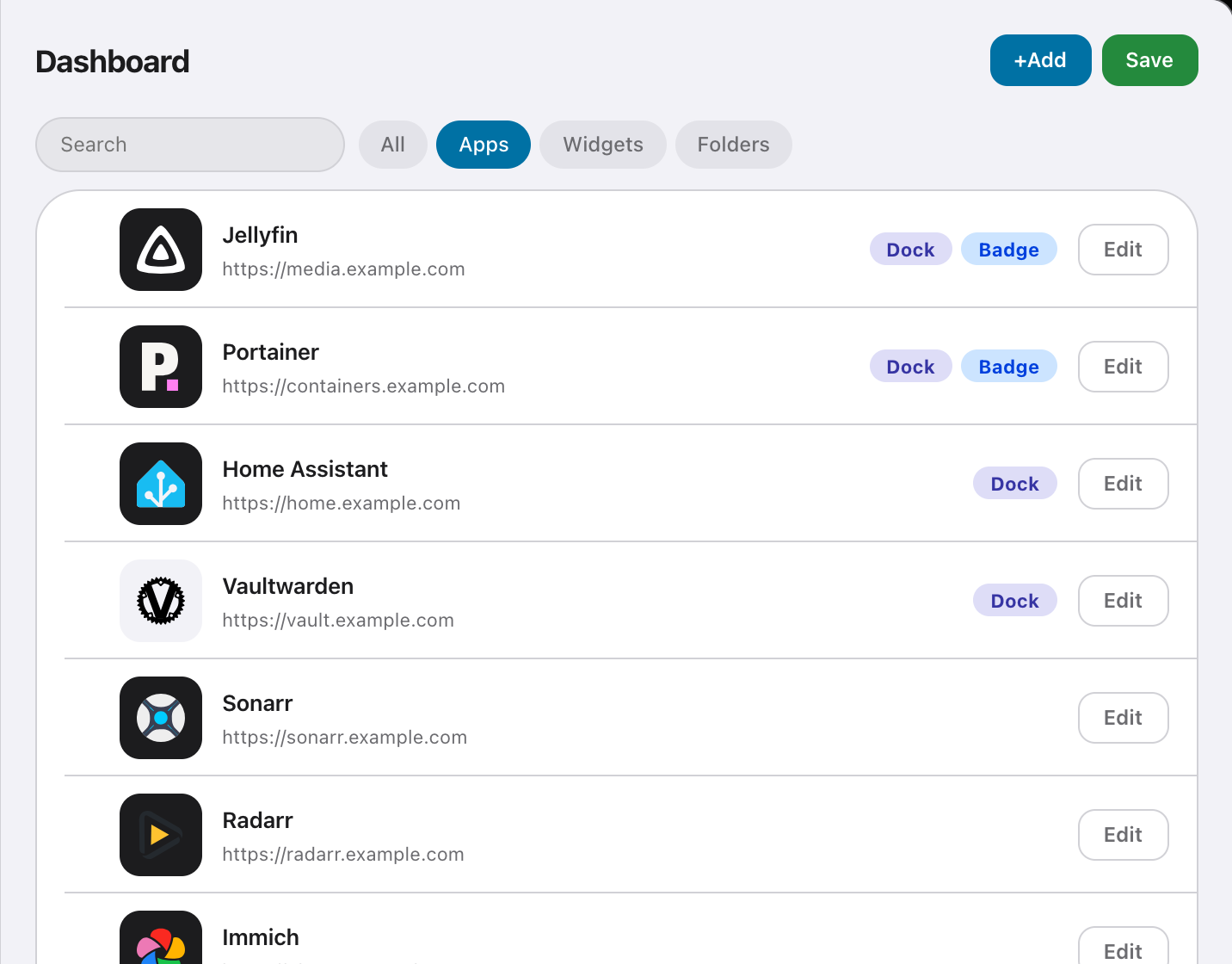
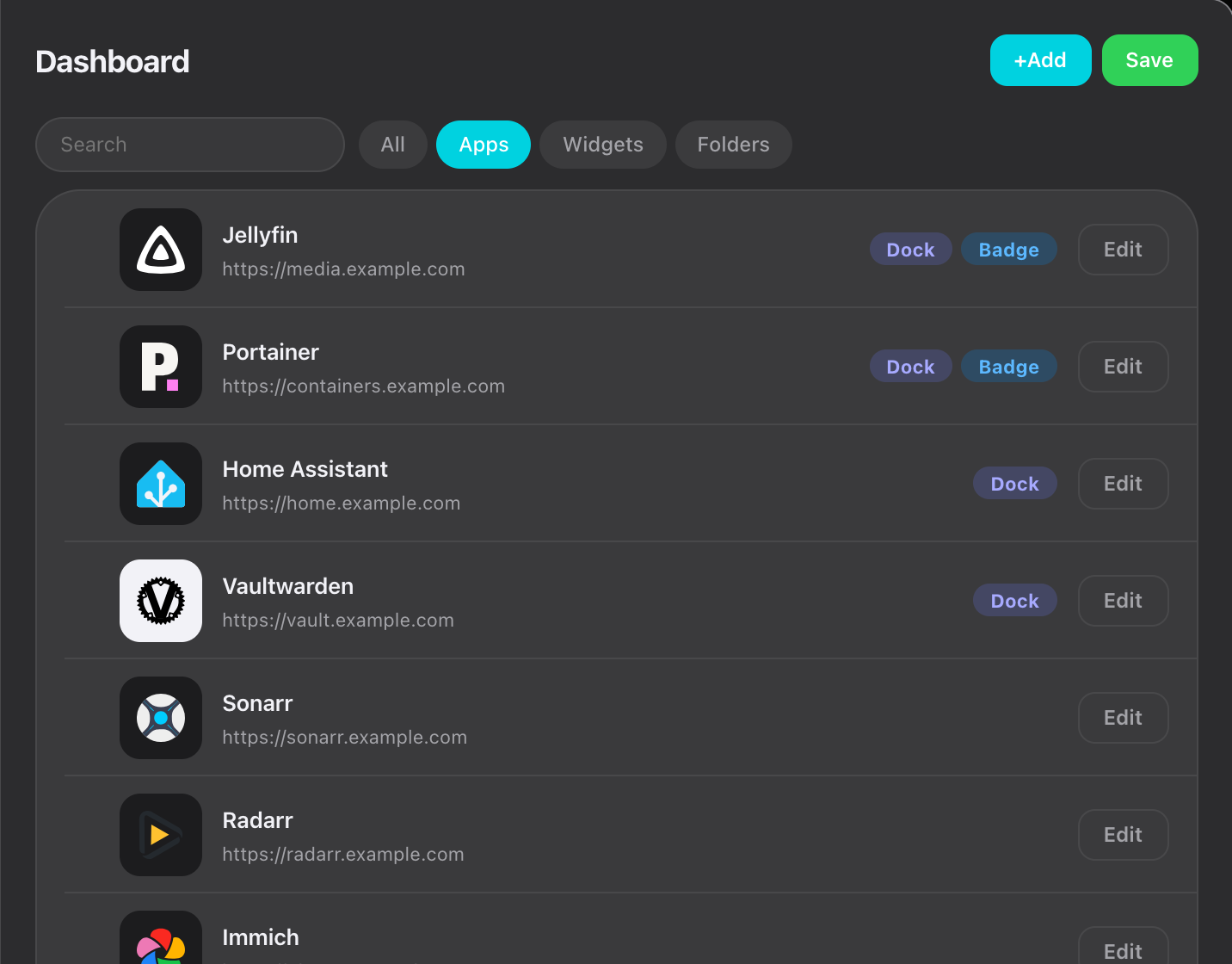
Apps are added under Dashboard in the admin UI. Nothing here edits a file by hand.
Add an app
Section titled “Add an app”Press Add, then fill in the app.
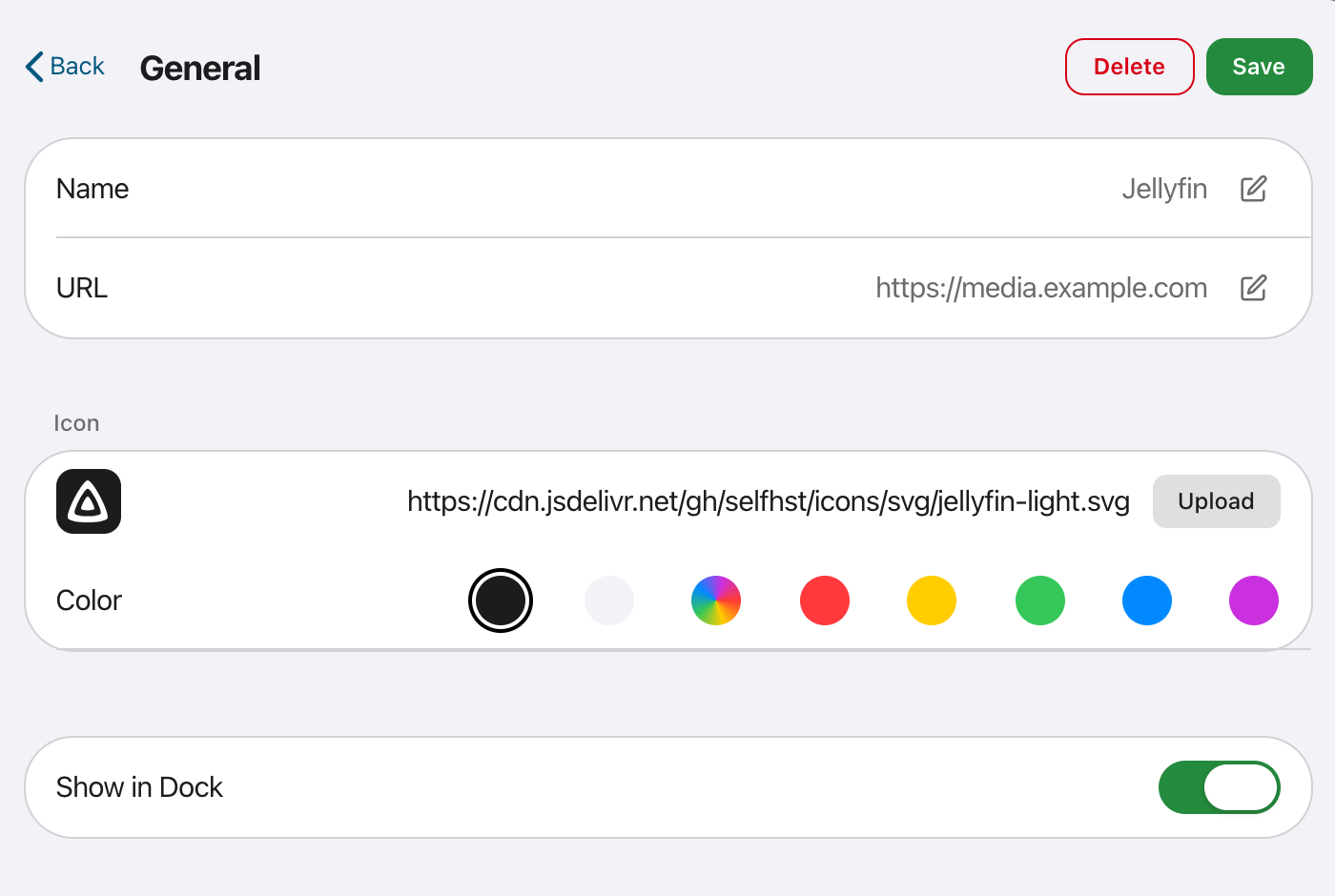
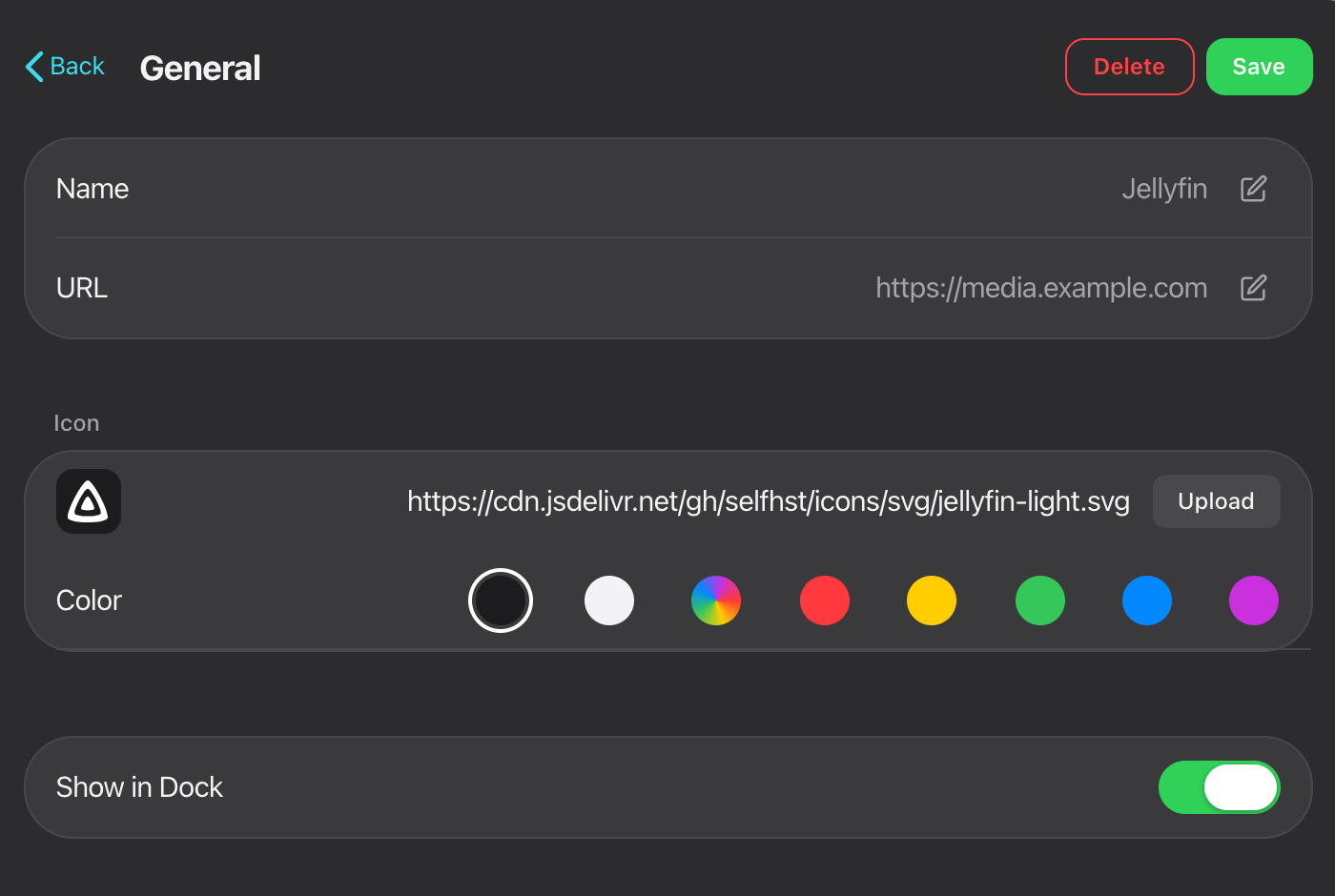
Type a name and Stackyard resolves it from the community dashboard-icons set. Typing sonarr finds the Sonarr icon. You can also paste a full URL or upload a file. Uploads are stored in ./icons and served from your own server.
Icons load through the server, which fetches each one once, sanitizes SVGs, and caches it for 24 hours. The CDN does not learn which services your dashboard shows.
If no icon resolves, the tile shows the first letter of the name.
Color takes a swatch or a hex value. Dark and Light are fixed tile colours, not theme-aware: the dashboard is always dark, so a tile keeps the colour you set.
The dock
Section titled “The dock”The dock is the row of icons pinned at the bottom of the dashboard. Turn on Show in Dock on an app to put it there.
It holds four apps. Once full, the toggle refuses more until you remove one. Widgets cannot go in the dock.
Folders
Section titled “Folders”A folder groups apps behind one tile, whose artwork is a grid of the icons inside it.
Create one from Add, name it, then use Add Apps to choose the contents. Folders cannot be nested, and a widget cannot go in a folder.
Reordering
Section titled “Reordering”The Dashboard list holds everything on the grid in one flat list. List order is grid order. Drag a row’s handle, or use the arrows on the row, and the new order is saved straight away. There is nothing to confirm.
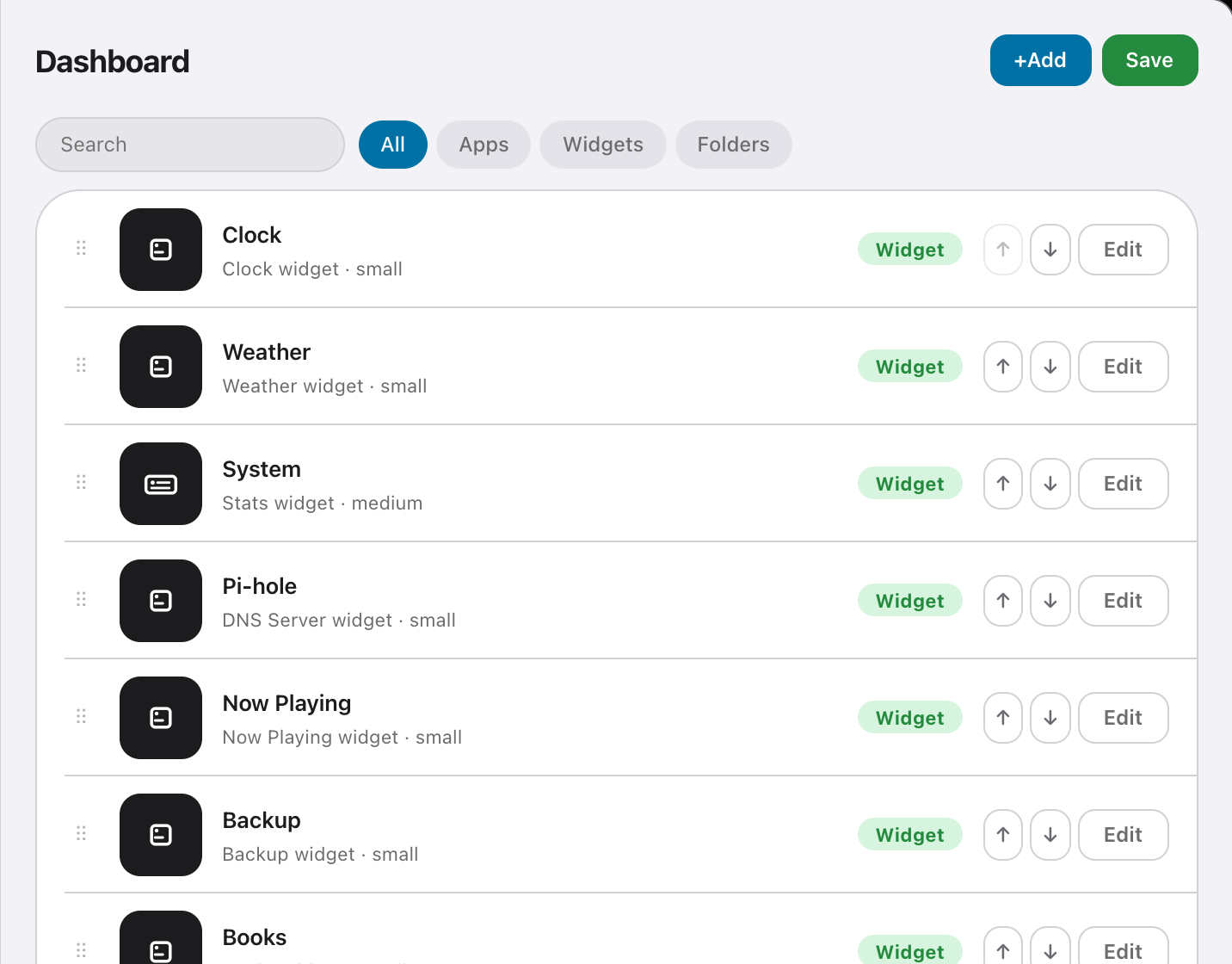
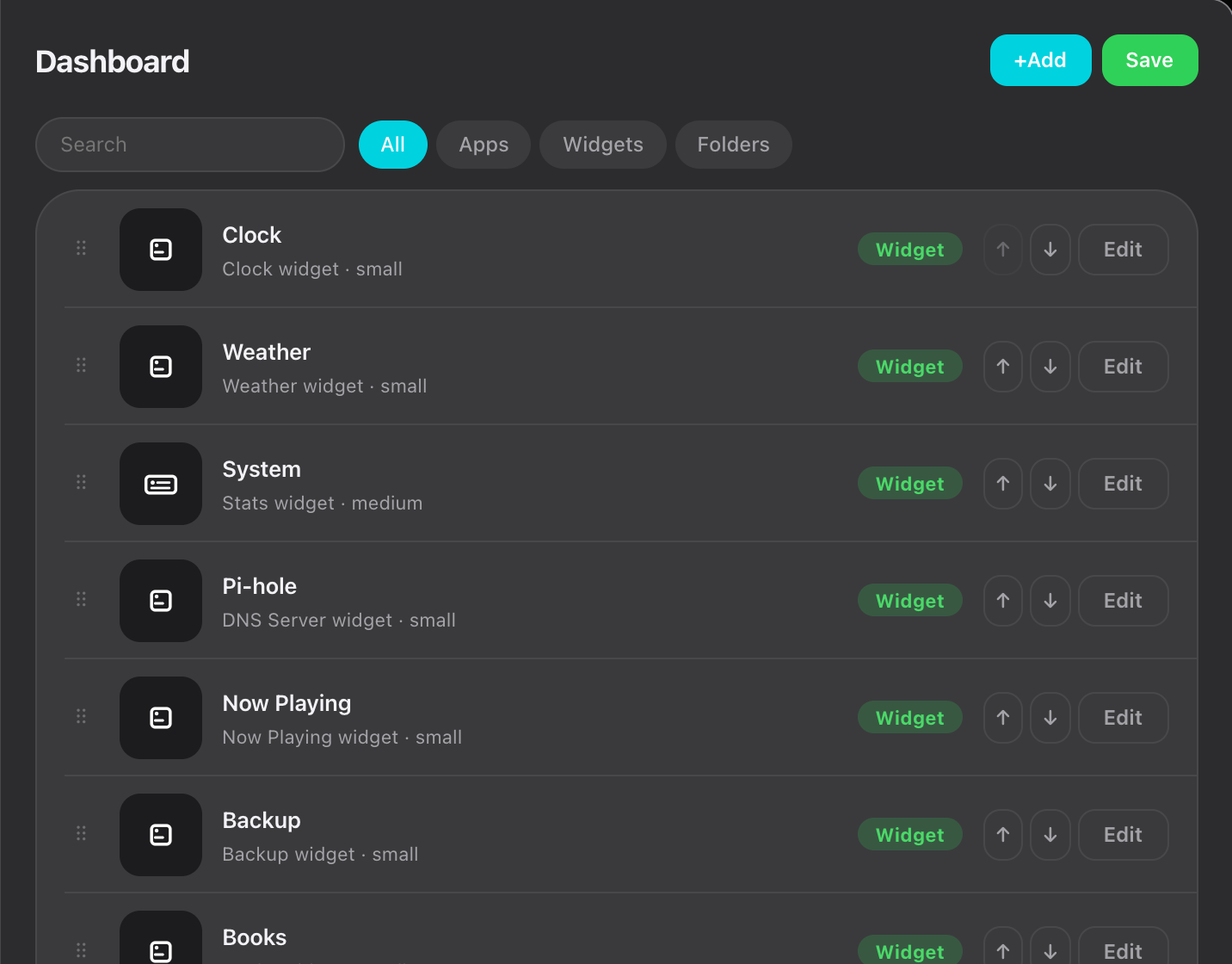
Rows are tagged with what is configured on them.